
KRINAVI TRIP FIT
KRINAVI Trip Fit
70/100Signal without mobile data
- Time efficiency70/100
- Route fit70/100
- Planning flexibility70/100
- Weather resilience70/100
- Crowd control70/100
- Value for cost70/100
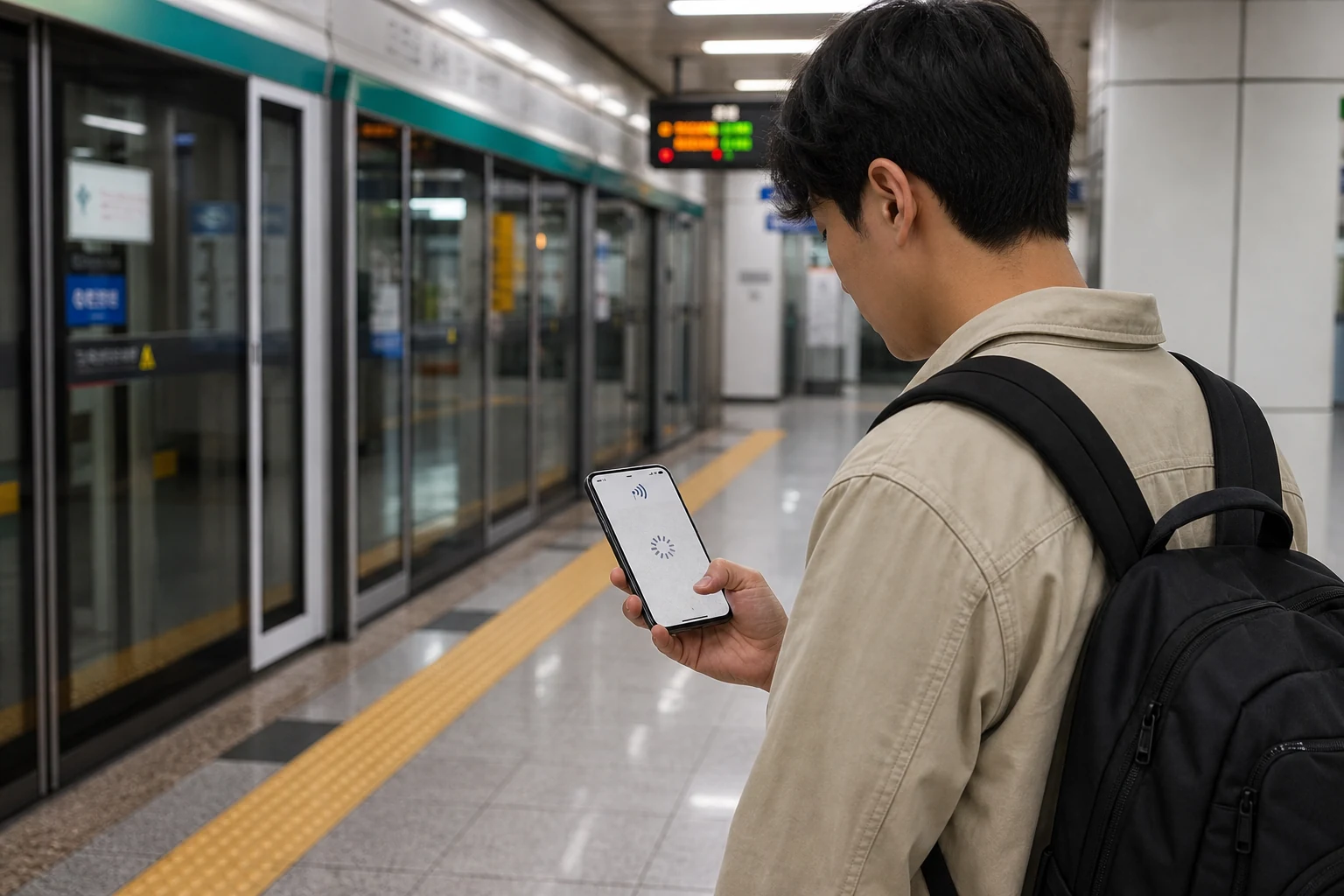
Turn Wi-Fi off, open a browser and load a page you have not visited. If the status bar still shows 4G, 5G or LTE but the page fails, use this checklist. If there is no carrier name or signal bar, start with the complete Korea eSIM setup guide; the two symptoms need different checks.
Do not delete the eSIM or scan the QR code again yet. First identify the likely cause: the wrong SIM is selected for data, roaming is not set as the provider requires, the plan has not started or has expired, network registration is stuck, or a required APN is missing. Change one setting at a time and test after each change.
Before buying, read the named plan’s activation, roaming and APN terms. If you have ordered, use the instructions and support route in the confirmation.
Confirm whether the problem is signal or data
A phone can show a Korean carrier while still sending data through the Taiwan line. Check the selected data SIM before changing roaming; the two-line setup guide covers the two-line setup.
On iPhone, select the travel eSIM under Cellular or Mobile Data. On Android, look for the SIM or mobile-network setting; menu names vary. Samsung users can follow Samsung Galaxy data-SIM settings, while other brands may use a different label.
Name the profiles “Taiwan number” and “Korea data” if the default names are unclear. Then turn Wi-Fi off, select the Korea eSIM for data and load a fresh page.
Set the correct SIM for mobile data
Enable roaming on the travel eSIM only if its seller instructs you to. Keep data roaming off on the Taiwan line unless you have purchased carrier roaming, and disable automatic data switching while troubleshooting.
You can leave the Taiwan number active for calls or OTP texts while keeping mobile data on the Korea profile. Avoid changing both lines at once; test after each adjustment.
After changing the data or roaming settings, wait for the phone to reconnect. If it remains stuck, switch Airplane Mode on briefly, then off and test again before changing another setting.
| Symptom | Check first | Avoid until confirmed |
|---|---|---|
| Carrier name and 4G/5G appear, but no page loads | Selected data SIM and travel-line roaming | Deleting the eSIM |
| The browser works but one app fails | That app’s permission, VPN or service status | Resetting all network settings |
| Signal remains but speed drops sharply | Plan usage, fair-use limit and location | Changing APN repeatedly |
| No carrier name or signal bars | eSIM activation, coverage and network registration | Changing multiple settings at once |
Check the order page for activation, expiry and remaining data before resetting the phone. If the plan ran out or the validity ended, settings changes cannot restore it.
Check that the plan is active and in date
If the plan worked earlier, check its status and usage first. The validity clock may follow activation time or calendar days; see the day-count guide if you need to recalculate the remaining days.
Unlimited plans may slow after a fair-use threshold, and hotspot rules can differ. Try a text-only page or message, then review Korea unlimited-plan limits for the provider’s speed terms.
If other sites work and only one app fails, check that app’s mobile-data permission, VPN, Private DNS or service status. Do not change the carrier APN for an app-specific problem.
Use APN details only from the provider
Use an APN only when the exact product instructions provide one. Apple notes that carriers control whether APN fields can be viewed or edited; an incorrect value can interrupt data.
Copy only the provider’s stated APN values, leaving unspecified fields blank. On Android, select the new APN after saving it. If iPhone hides the APN menu, contact the provider instead of trying values from another plan.
After a required APN change, reconnect once and test. If it still fails, send support the order number, time, location, carrier name and screenshots of the selected data SIM and roaming switches; hide the QR code.
Try low-risk connection checks first
A full network reset can remove saved Wi-Fi, VPN and connection settings. Check the SIM, roaming, plan status and exact APN first, and save passwords and the support contact before resetting.
A restart is a simpler later check. If other people on the same provider lose service in the same place, wait or contact support rather than repeatedly changing a phone that may already be configured correctly.
Buy another plan only after support confirms that the current one cannot be restored and you still need data where Wi-Fi is unavailable. Before reordering, compare device support, dates and data allowance.
Know when a reset or replacement is justified
After connection returns, keep the current profile and note the settings that worked. Save the provider support route in case the same issue returns.
Related troubleshooting guides
Related setup guides
Official device instructions
Best for: phones that show a carrier or signal but cannot load a webpage on mobile data.
Core judgement: Check the data route, travel-line roaming and plan status before applying a provider-specified APN or resetting network settings.
Sources checked in this page: Source 1 · Source 2 · Source 3 · Source 4