
KRINAVI TRIP FIT
KRINAVI Trip Fit
70/100Follow the provider’s installation rule, then test the data line after arrival.
- Time efficiency75/100
- Route fit70/100
- Planning flexibility70/100
- Weather resilience70/100
- Crowd control70/100
- Value for cost70/100
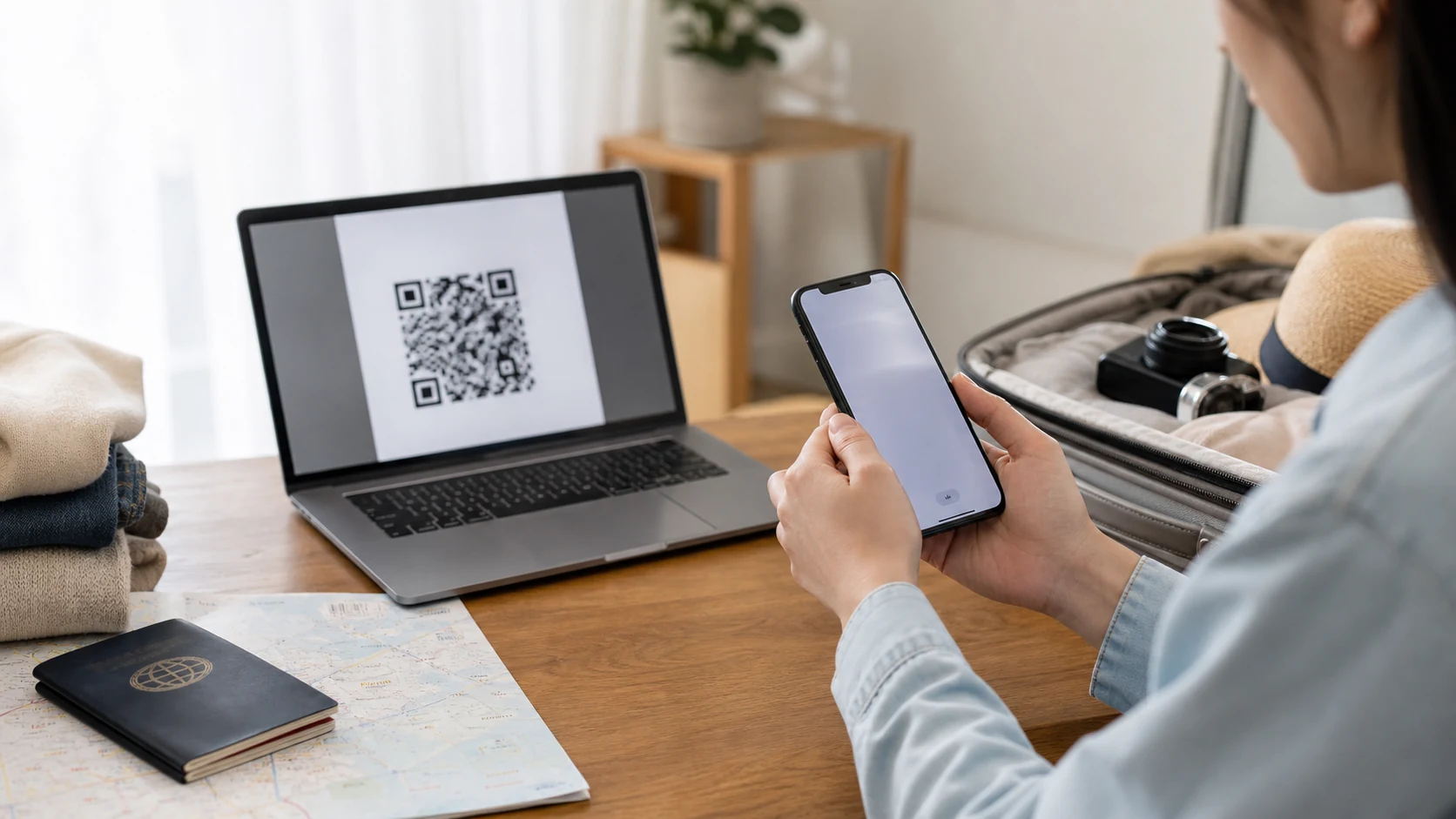
Check iPhone support and plan timing
Check the exact model and sales region before buying; “iPhone” alone does not confirm eSIM support. If uncertain, read the Korea eSIM compatibility check and compare the plan’s installation rule.
Save the order, QR code or activation details and the plan’s start rule somewhere you can open offline. Do not assume installation and activation begin validity at the same time.
Install through the method the provider specifies
On many English iPhone menus, the path is Settings > Cellular > Add eSIM. Follow the QR, app or manual method supplied by the provider, and install over reliable Wi-Fi when its terms allow.
Keep the travel line for mobile data when needed and your original number for calls or messages. Follow the provider’s roaming instruction and see how to split duties between your original number and eSIM for assigning each line a role.
Test the data line after arrival
After arrival, select the Korea eSIM for mobile data and enable roaming only if its terms require it. Turn Wi-Fi off briefly to load a fresh page or map; test SMS separately.
If signal appears but pages fail to load, verify the selected data line, required roaming and network settings. Then follow the troubleshooting order for signal without data before changing anything else.
Save the QR code and instructions offline
Before departure, save the provider’s installation and activation instructions offline. Install early only when the plan permits it; do not trigger validity ahead of your trip.
Do not delete an eSIM as a first fix. Some providers limit reinstallation or require support to issue another QR code; try reversible checks and consult the plan instructions first.
Switch data back after the trip
After returning, switch mobile data back to your original line. Keep or remove the Korea profile according to whether you will reuse it and the provider’s rules.
iOS menu names change. Use Apple’s current guidance and the named plan’s instructions to confirm which line handles data, calls and texts.
Avoid first-time setup at the terminal
Finish the steps that do not require destination coverage before the airport rush: save the order, check the line label and keep the original SIM available.
If scanning fails, use the original QR image or the provider’s app/manual setup. Keep the code until the profile is working and check the provider’s reinstallation rule.
Troubleshoot by the symptom shown
Separate “no network” from “signal but no data.” Check the active line and plan region first, then follow the provider’s roaming, APN or network-selection instructions.
A Korea-only plan may not connect during an overseas layover. Keep the current connection for transit and test the travel line after reaching the covered region.
Record the settings that matter
Save the plan name, data-line selection and original-line roaming setting. Those details make it easier to identify the last change if troubleshooting is needed.
With Wi-Fi off, open Maps or a new webpage and send one message. This checks the selected data line; it does not guarantee coverage everywhere.
Fit the setup to your arrival
For a late arrival, save installation details and the hotel address before boarding so you do not need to search an email at the terminal.
If your trip includes a concert, Jeju drive or time apart from companions, use travel stress choices to choose data terms before installing the plan.
Related setup links
Related setup links
Apple’s iPhone instructions
- Apple Support: Add an eSIM on iPhone
- Activation, roaming, and the number of reinstallation attempts vary by product terms; use the named product page before payment.
Decision card: install, select and verify
Use the plan’s installation rule, keep the original line available when needed, and verify mobile data after arrival.
Install over a reliable connection when permitted; test the Korea data line and keep your original number’s settings clear.
Official and product references: Source 1 · Source 2 · Source 3