
KRINAVI TRIP FIT
KRINAVI Trip Fit
70/100When a Korea eSIM shows no signal, check the selected line, activation status and network registration before reinstalling the profile.
- Time efficiency75/100
- Route fit70/100
- Planning flexibility70/100
- Weather resilience70/100
- Crowd control70/100
- Value for cost70/100
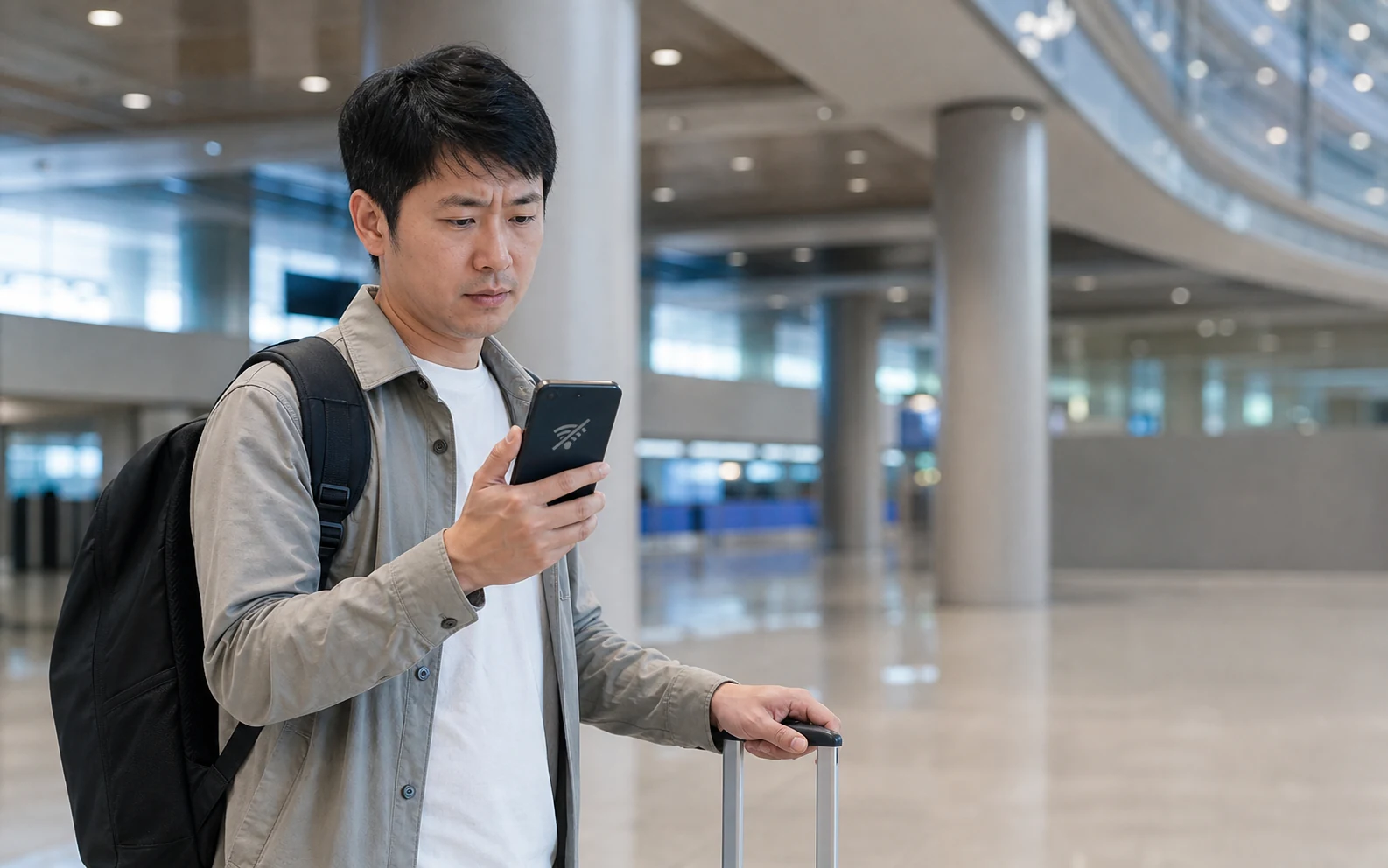
A carrier name or 4G/5G icon with pages that will not load is a data issue; use the no-data troubleshooting guide for signal but no internet for that case. This guide covers a line that has not registered on a network.
Briefly turn Wi-Fi off and note whether a carrier name or error appears. Check the eSIM line and whether it is enabled in the phone settings. Keep the QR code private because it may contain installation credentials.
Before purchase, check Korea coverage, device compatibility and activation terms on the product page. After purchase, follow the instructions for that exact plan.
Confirm that the eSIM is installed and enabled
Open Cellular or SIM Manager and confirm that the travel profile appears and is enabled. If it is off, enable that line. If it is missing, check the order and ask the provider about reissue before scanning a QR code again.
After enabling the line, give the phone time to search for a network. Follow any provider-set activation time, then check the displayed line status before changing another setting.
If the profile is missing, check the order email or provider app and contact support before reusing the QR code; reissue rules differ. Share the order number, phone model and error screen. The compatibility guide covers model and region checks: how to confirm phone compatibility.
Refresh network registration safely
With the travel line on and airplane mode off, switch airplane mode on and back off once, then wait for registration. Leave network selection on automatic unless the provider lists a partner network. If a listed manual choice is rejected, return to automatic and note the network and time for support.
Do not select a carrier just because it appears in the list. If automatic registration fails, try only a partner network named by the provider; otherwise contact support with the error and location instead of cycling through networks.
Use airport Wi-Fi to check the plan instructions and automatic date/time setting. Follow the device-specific setup steps for the iPhone Korea eSIM setup flow or the common check points across different Android menus.
While the phone is offline, keep your accommodation address, meeting point and support contact available to another traveler or on paper. This lets the group continue while you check the line.
Check activation and coverage
Activation can begin at installation, manual activation or first connection, depending on the product. Compare the plan terms with your location; service may be unavailable outside its stated coverage.
Support depends on phone model, sales region, carrier lock and software. Check your exact device against the compatibility checklist before purchase: the items to check before paying.
If registration still fails, stop repeating settings changes and contact the provider over Wi-Fi. Include the order number, phone model and software version, location, time and exact error. Do not send QR codes, IMEI or payment details in an unsecured message.
Use Wi-Fi to contact the provider
Use airport, accommodation or a trusted hotspot Wi-Fi connection to open provider support and check the plan status before paying for a replacement.
A second eSIM may be a backup, but first confirm whether the original profile is enabled, when its validity began and what support recommends. Avoid scanning the same QR again unless the provider confirms it is safe.
For the line assignment, see how dual-SIM data sources should be divided; if the problem is data allowance rather than signal, use the daily usage estimate. Keep the lodging address, route and meeting point offline and essential contact methods available on another device.
Before replacing the plan, compare its device support, Korea coverage, activation trigger and validity with the remaining trip dates. A new product will not resolve a handset or setup issue by itself.
Choose the guide below that matches what your status bar shows: no network, or a registered line without usable data.
Choose the next troubleshooting guide
For phone-maker settings, consult the support pages below. The plan provider’s activation and partner-network instructions determine how its eSIM should register.
- Apple Support: Set up an eSIM on iPhone
- Google Pixel Help: Fix mobile connectivity issues
- The activation timing, partner networks, reinstallation, and support handling rules for eSIMs vary by exact product; this page does not replace the order terms with generic steps.
KRINAVI decision card
Best use: work through a no-network registration problem without losing the existing eSIM profile.
Confirm the line is present and enabled, check the plan’s activation instructions, then contact the provider before reinstalling.
Sources checked in this page: Source 1 · Source 2 · Source 3 · Source 4